How to enable Autosave feature in MS Excel ?
Author: Tom4u // Category: microsoft excel, microsoft office, Microsoft Word
Microsoft Excel includes a powerful feature of saving your document automatically after some specified time intervals. By default, Excel automatically saves your current document after every ten minutes intervals but you can change this time. This Auto save feature save the data in the same file. However, AutoSave protects your data in the event that Excel unexpectedly quits. It is also good idea to create a backup of your files using any removable devices, because in this global network a computer can crash, a virus create problem, or a hard drive failure can wipe out everything.
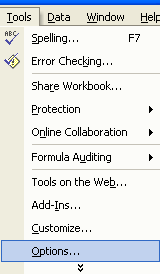
Follow the given steps to change default save time and enable auto backup feature:
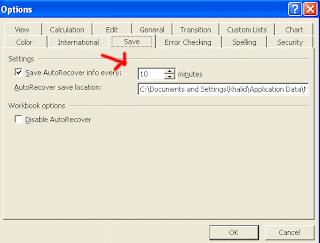
A small dialog box will open, here select the Save tab in the dialog box.
Here you have choice to modify the location of saving your document automatically under "AutoRecover save location" option.Click the Ok button of dialog box to finish the process.
Follow the given steps to change default save time and enable auto backup feature:
A small dialog box will open, here select the Save tab in the dialog box.

Now click the "Save AutoRecover info every" check box and enter the time in minutes under "Settings" area.

Here you have choice to modify the location of saving your document automatically under "AutoRecover save location" option.Click the Ok button of dialog box to finish the process.
source:computerfreetips.com
